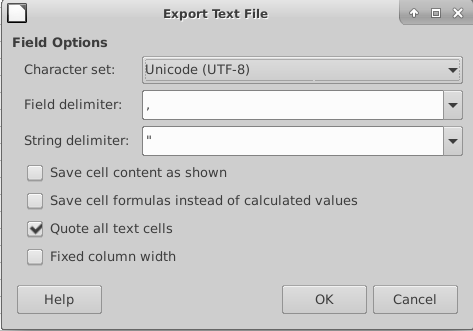
In LibreOffice, double-click the file and a window will appear asking for the import settings. Select the options as shown in the image below.
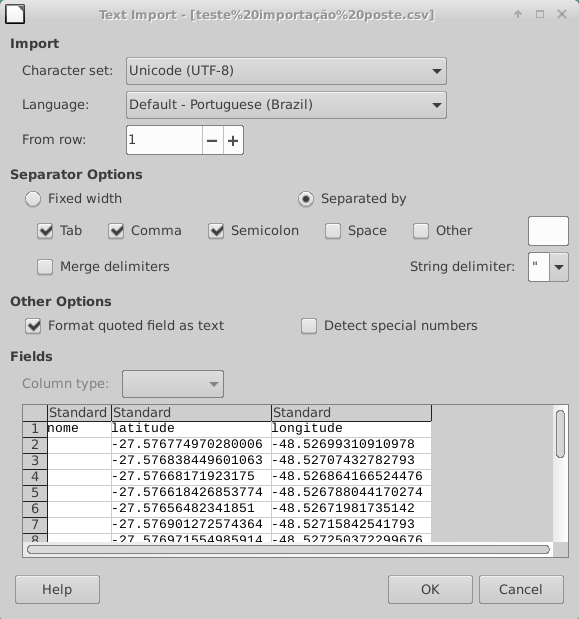
Click OK, and the file will open with the data separated into columns and ready to be edited.

Modified on: Tue, 20 Jan, 2026 at 3:51 PM
In LibreOffice, double-click the file and a window will appear asking for the import settings. Select the options as shown in the image below.
Click OK, and the file will open with the data separated into columns and ready to be edited.
Did you find it helpful? Yes No
Send feedback