
In OZmap, it is possible to manually create the link between a splitter/client and a PON even without complete documentation, without necessarily requiring a network diagram. With this functionality, we also reduce the time required to integrate with other systems that retrieve PON information from OZmap.
Splitters
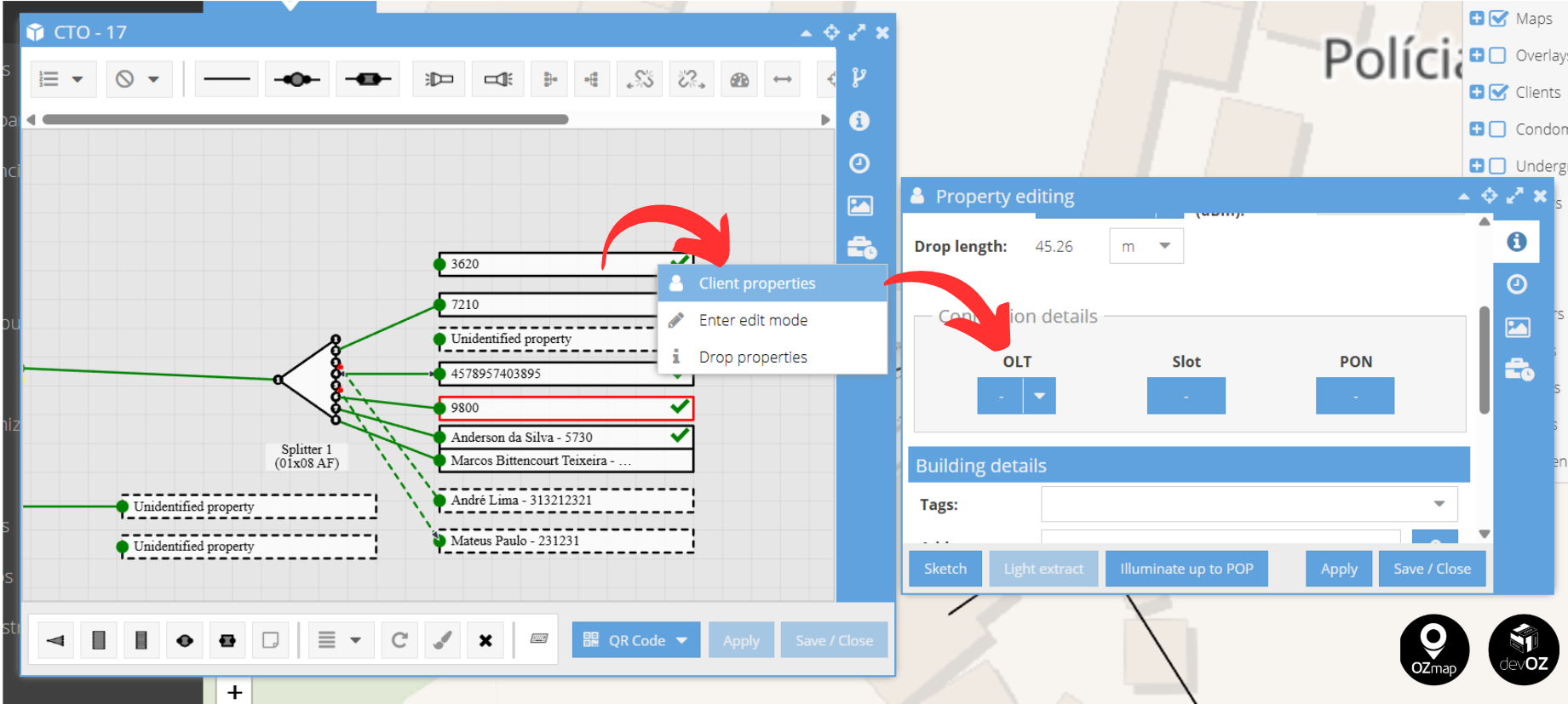
In Splitters, it is possible to view and change the PON reference by right-clicking on the equipment and selecting “Element properties”.
In the Connection Details field, it is therefore possible to make changes by entering the POP and OLT names and selecting the SLOT and the PON.
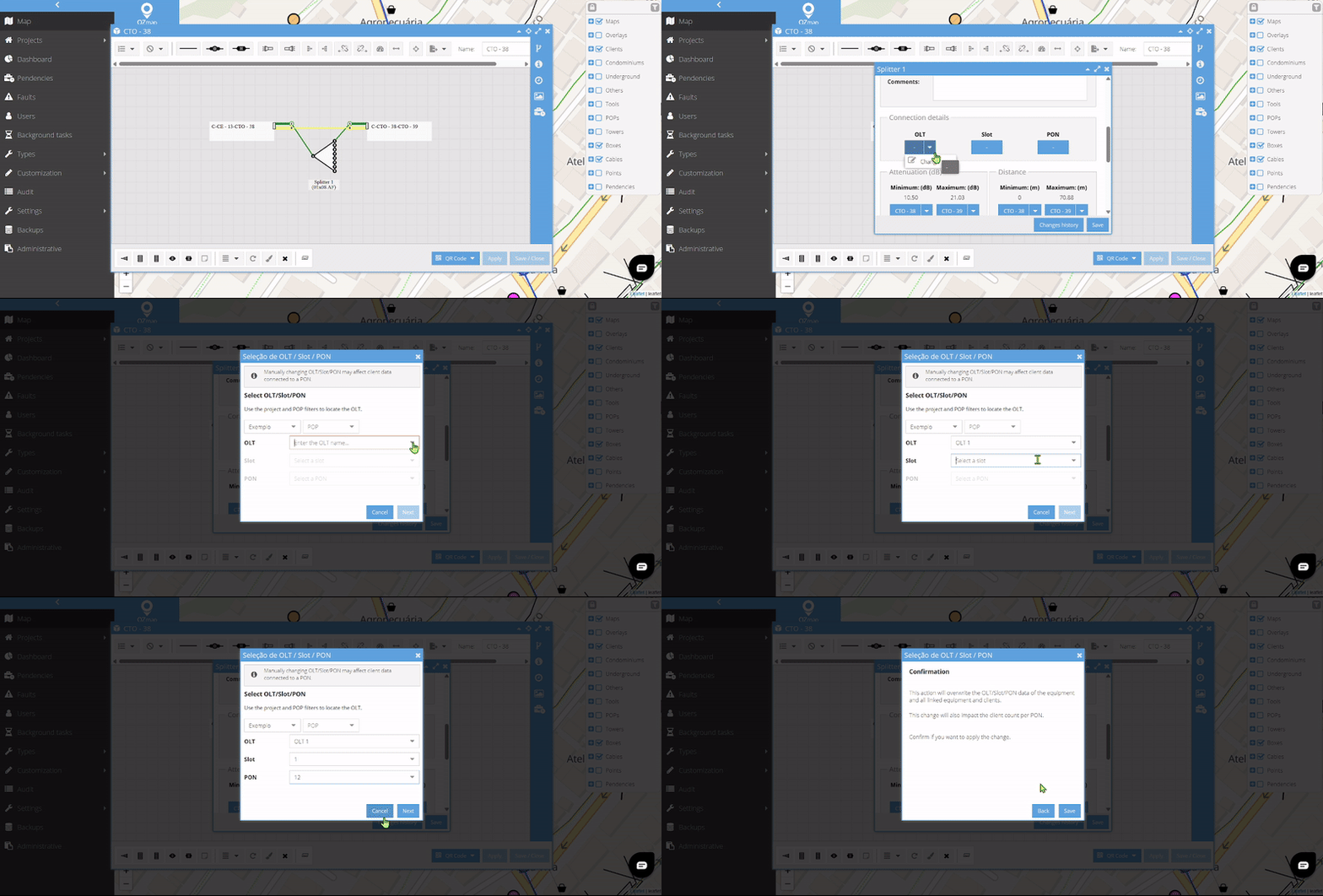
The system will also warn about data overwriting, as any settings applied here will be inherited by all subsequent elements receiving this signal, whether they are clients, other splitters, or so on.
From this point on, all clients will have the configuration displayed in their information menu, and the PON can be checked by clicking on “Details”.
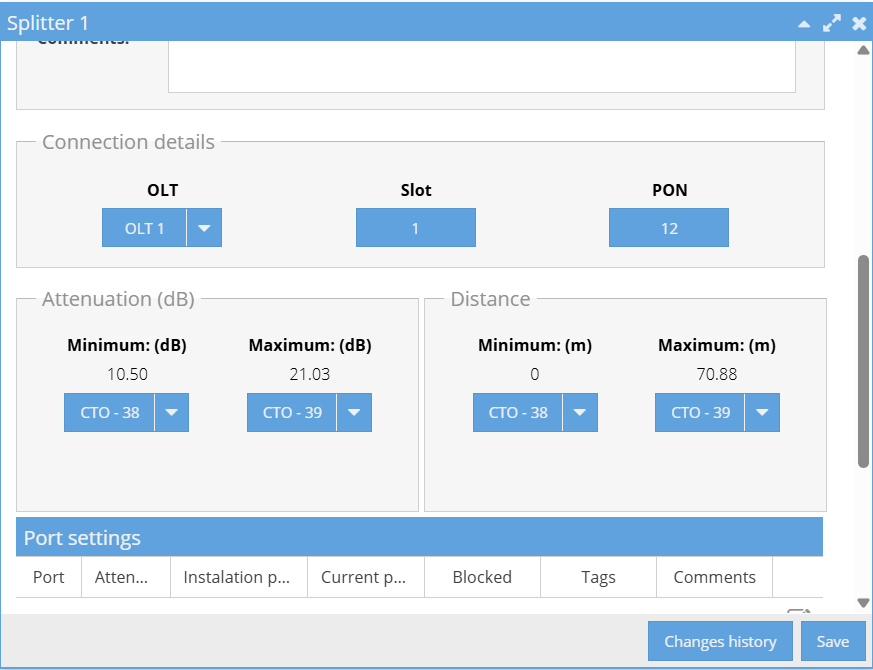
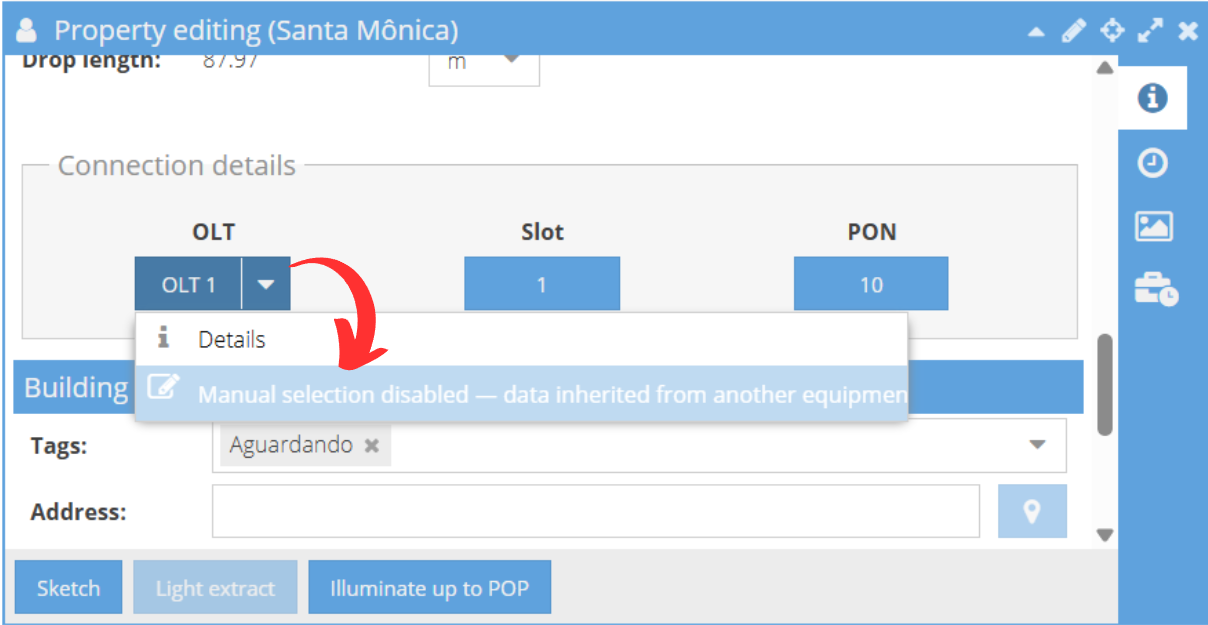
Another point is that manual selection will be disabled, as the information is being inherited from another piece of equipment (in this case, the splitter to which the client is connected).
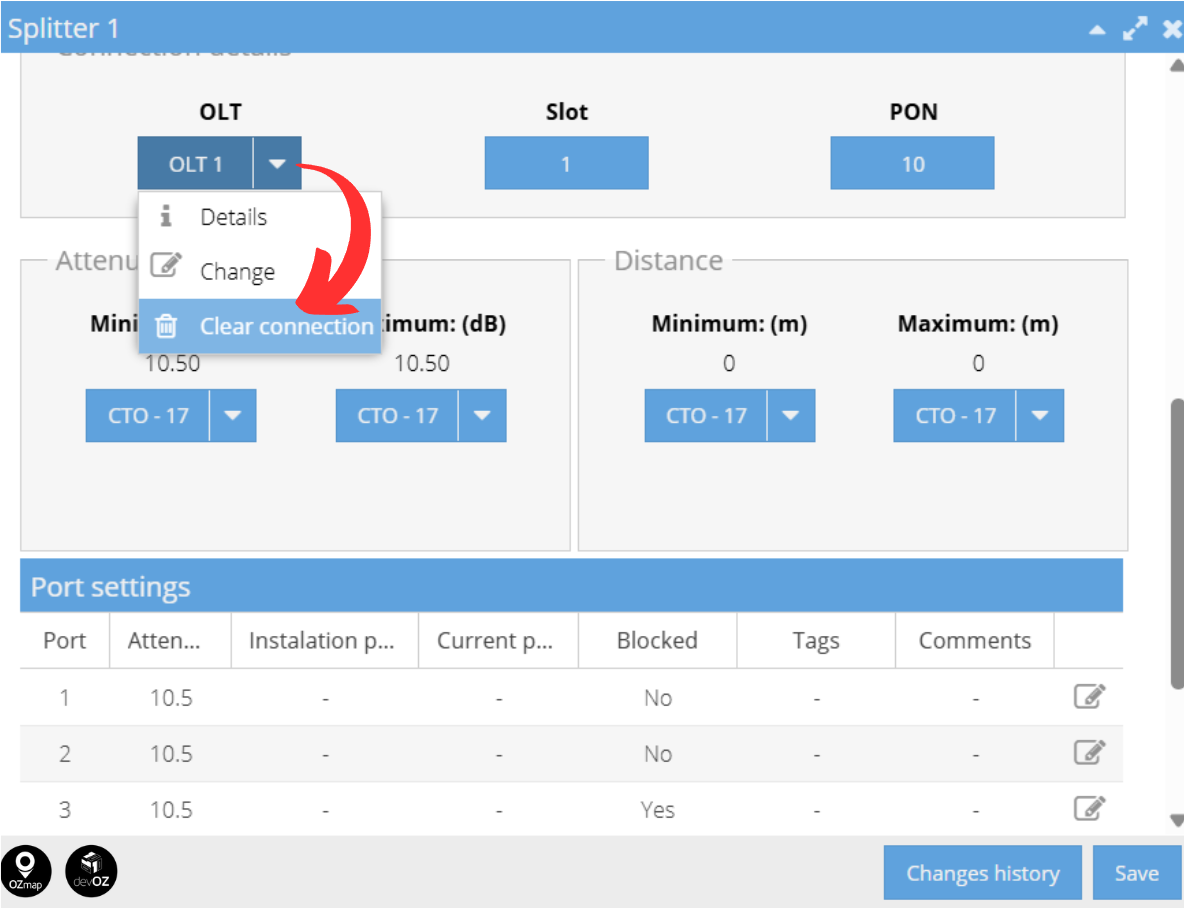
In the same field, within the splitter, it is possible to clear the connection, causing all subsequent elements to also lose the connection.
Clients
In the case of standalone clients, that is, clients whose connection information is not defined by the network or by a splitter, it is possible to manually select the PON in the client’s properties.
POP
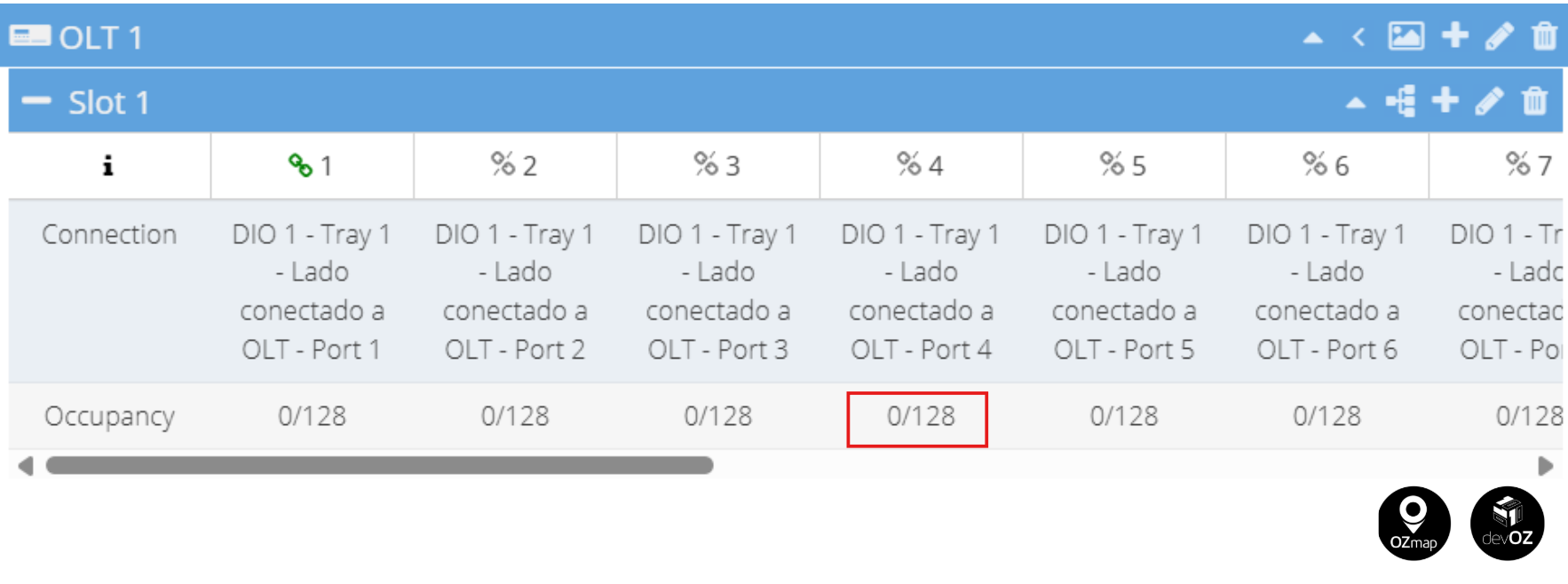
At the POP, once the connection is established, the PON occupancy will also be referenced normally, taking into account the clients connected through this functionality.
Activating the Module
After confirming the purchase, the module will be available in your OZmap for quick activation and deactivation in the system settings menu.
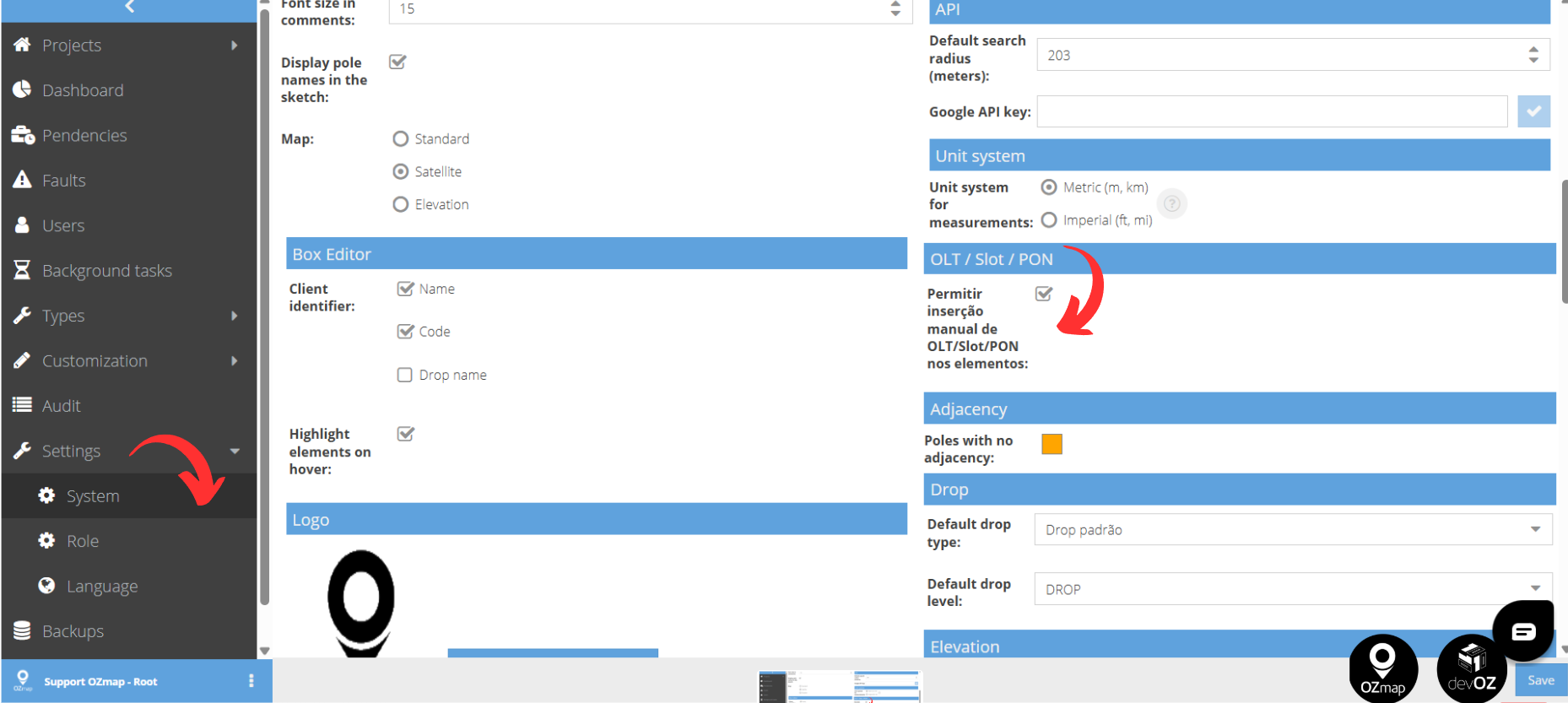
After checking or unchecking the checkbox, click Save in the lower-right corner, and the page will be reloaded to apply the changes.
Interested?
It’s simple! Just open a ticket with our Support team letting us know that you’d like to learn more about the module. Then, include your contact details (email and phone number) in the message and leave the rest to us!